vnc-share-physical-monitor
Access physical display over remote connection on Raspberry Pi 5 with Debian 13 on arm64
Read this and other Raspberry Pi guides here
- How to get Argon One v2 fan control working on Raspberry 4B and Debian 64
- Running Interactive Brokers gateway on Raspberry 4B and Debian 64-bit
- Share your Raspberry Debian 64-bit physical desktop remotely with x11vnc
New Debian 13 update
VNC connection used to work flawlessly on Debian 12, but not on Debian 13.
The default desktop for Debian 13 was GNOME running on Wayland. Problem with Wayland is that you cannot start GUI application on physical desktop from remote SSH shell, since Wayland is not a server (but whatever compositor), and DISPLAY:=0 is no longer available.
You can ignore RDP remote sessions, because RDP mainly creates virtual desktops. You could connect to your physical desktop in GNOME using RDP, but you would need to login to the GNOME sesion on your physical display first, and enable RDP in the menu, which defeats the purpose of connecting to the display remotely without local keyboard and mouse.
⚠️ *Nov 2025: Looks like the below issue with VNC crashing was caused by GNOME. I have switched to LXDE and it works fine so far, no VNC crashes on login. LXDE also runs on X11 and is incompatible with Wayland. I actually like LXDE a lot better than GNOME. It allows both connecting to existing physical display session and creating virtual (headless) session. The only tweak needed was to open Preferences - Raspberry PI Configuration - Display - Headless resolution - 1920x1080.
⚠️ *Oct 2025: vncserver-x11-serviced is crashing without connected physical monitor! When my HDMI cable was connected through HDMI hub with a different device, or in other words disconnected from RPI, the VNC Viewer session would crash immediately after establishing a session. It seems to be a fault of the VNC server. When HDMI cable (display) was connected to RPI, the VNC session went through without issues and I could control the desktop. Again, connecting to desktop worked in prior Debian 12 without issues, albeit with Wayvnc and Wayland. In this light, perhaps it would be better to get rid of vncserver-x11 and install Wayvnc back, but I haven’t tested that yet.
Since Wayvnc is no longer the VNC server of choice on Debian 13 for some reason, we need to make certain changes to the system.
Older GNOME paragraph
### Get rid of Wayland and switch to GNOME on Xorg First make sure you are running GDM3 and not lightdm or others ``` $ apt install gdm3 ``` or ``` dpkg-reconfigure gdm3 ``` will switch to GDM3 as your login manager. When booted to login screen (GDM3), click settings icon in the bottom right corner and change to "GNOME on Xorg"
Get rid of Wayland and switch to LXDE on X11
The default login manager is LightDM, no need to change it. While logging in, click on an icon in the top right corner and switch to LXDE
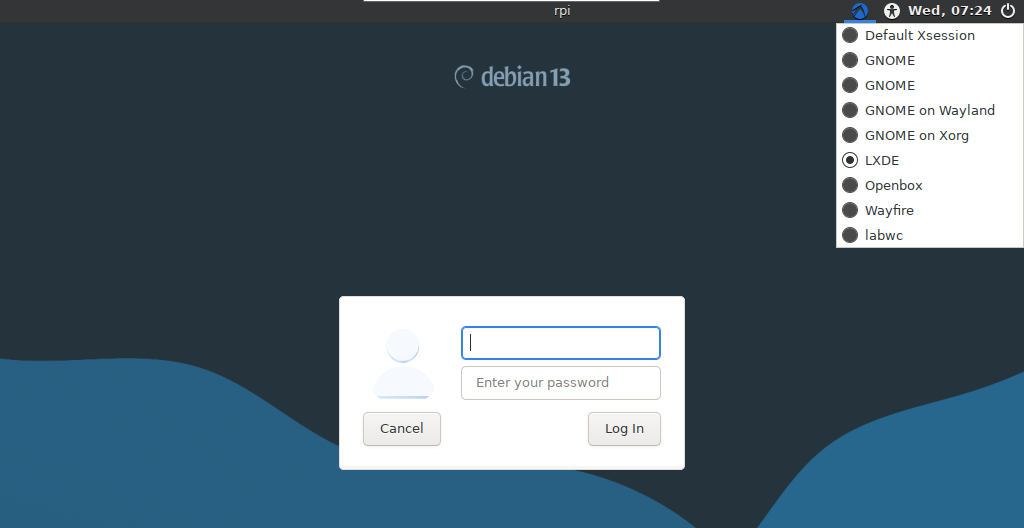
Enable autologin
Open Preferences - Raspberry PI Configuration and select “Boot to desktop” and “Desktop auto login”
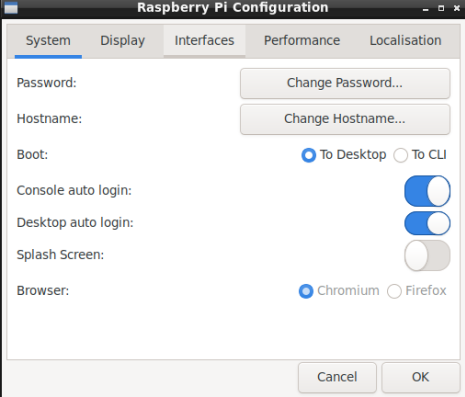
or in console run sudo raspi-config and select “1 System Options” and “S5 Boot to desktop” and “S6 Auto Login to desktop”.
Enable VNC
Unless it was already enabled. You can check using sudo ss -tlnp sport = :5900 or sudo lsof -i :5900.
To enable VNC, check the official Raspbery PI guide, which tells you to open “Raspberry PI Configuration” app and enable the VNC switch.
In Debian 13 the default VNC server is called vncserver-x11-serviced. To avoid VNC client issues I recommend downloading RealVNC Viewer.
Old GNOME inactivity suspend paragraph
### Disable GNOME inactivity suspend Again, for some reason you cannot change suspend in the GUI on Debian 13. Follow this [askubuntu.com post](https://askubuntu.com/a/1262605), you need to run these commands in GUI (not on SSH shell), and as a local user, not root or sudo! Get current value. ``` gsettings get org.gnome.settings-daemon.plugins.power sleep-inactive-ac-type ``` Get all values. ``` gsettings range org.gnome.settings-daemon.plugins.power sleep-inactive-ac-type ``` Change value to 'nothing' ``` gsettings set org.gnome.settings-daemon.plugins.power sleep-inactive-ac-type 'nothing' ``` Check if the value changed. ``` gsettings get org.gnome.settings-daemon.plugins.power sleep-inactive-ac-type ```
Old Debian 12 section
## Old Debian 12 section ### Intro I wanted to replace my hosted virtual server, that I was paying monthly fees for, with Raspberry Pi 4B / 8GB with Debian 64-bit OS. Originally I ran the server in a reliable setup with xrdp + xvbf + x11vnc that I used for several years without issues. The downside of this setup is that you have nothing to show on your physical desktop, since xrdp creates a virtual desktop unrelated to your physical screen. Linux xrdp is a different beast than Windows RDP. Also the virtual framebuffer is not very convenient to use, since it is quite cumbersome to resize windows. My goal was to 1. run the X server on a monitor connected to RPI via HDMI, with a lightweight window manager, while simulaneously sharing the same screen via VNC. Not RDP, mind you! Or in other words - **I wanted to move the mouse cursor on my physical monitor using a remote connection.** 2. I prefer to to run all services only on localhost, and connect to them through SSH forwarding, so you don't have to bother with any passwords other than SSH. You need to make sure **all services were listening only on localhost!** 3. Avoid using NoMachine and other resource hungry tools. I will describe a few options here, but really only #2 and #3 allow for sharing your physical screen. 1. **Virtual session (xrdp + xvfb + x11vnc)** 2. **One session sharing with login screen (xdm + x11vnc)** 3. **One session sharing with autologin (slim + x11vnc)** Please see the appropriate sections below. ### 1. Virtual session (xrdp + xvfb + x11vnc) The original setup that will provide only virtual desktop, not physical. In case it might come useful to someone. ``` # apt-get install xrdp xvfb x11vnc ``` #### Edit xrdp.ini Location - /etc/xrdp/xrdp.ini In the section *Session types* and a new, first entry: ``` [xrdp] name=Remote Desktop lib=libvnc.so username=ask password=ask ip=127.0.0.1 port=5900 ``` You can call it whatever you like. The important thing is the port and bind to localhost. #### Create xvfb.service Create this file anywhere you like (I suggest some Git repo), and link it to /etc/systemd/system/xvfb.service File contents: ``` [Unit] Description=X virtual framebuffer Requires=xrdp.service After=xrdp.service BindsTo=xrdp.service PartOf=xrdp.service [Service] Type=simple ExecStart=/usr/bin/Xvfb :0 -ac -screen 0 1920x1080x24 Restart=on-failure RestartSec=10 [Install] WantedBy=multi-user.target ``` Link it like this ``` # ln -s /home/myownself/xvfb.service /etc/systemd/system/xvfb.service ``` #### Create x11vnc.service File contents: ``` [Unit] Description=VNC Server for X11 Requires=xvfb.service After=xvfb.service BindsTo=xrdp.service PartOf=xrdp.service [Service] Type=simple ExecStart=/usr/bin/x11vnc -ncache 10 -ncache_cr -display :0 -clip 1920x1080+0+0 -forever -shared -o /var/log/x11vnc.log -noipv6 -localhost -loop -nopw Restart=on-failure RestartSec=10 [Install] WantedBy=multi-user.target ``` Link it the same way ``` # ln -s /home/myownself/x11vnc.service /etc/systemd/system/x11vnc.service ``` #### Enable services Now reload systemd and enable both services to run on a system boot. ``` # systemctl daemon-reload # systemctl enable xrdp # systemctl enable xvfb # systemctl enable x11vnc ``` #### Set up RDP through an SSH tunnel You can use putty, kitty or whichever SSH client you like. You need to set up port forwarding from remote 3389 to any local port (1234) and use this local port 1234 in the Remote Desktop - connection 127.0.0.1:1234 Or you can use Mobaxterm, which is an all-in-one package. * Mobaxterm - RDP * Remote host: 127.0.0.1, Port: 3389 * Network settings - SSH Gateway - enter your SSH credentials. ### 2. One session sharing with login screen (xdm + x11vnc) You will need to login to XDM every time, either remotely or locally, before you can start any apps with GUI. Take your pick of a window manager. I went with Fluxbox, since it needed to install the least number of packages of all I have tried. #### Install window manager ``` # apt-get install fluxbox ``` #### Install display manager To be able to login on a physical screen. Either using xdm or whatever else you like. ``` # apt-get install xdm ``` #### Stop xrdp and xvfb (if you installed it previously) xvfb is running its own X server, so you need to stop and disable it. ``` # systemctl stop xrdp # systemctl disable xrdp # systemctl disable xvfb ``` #### Create (or edit) x11vnc.service Create this file in /etc/systemd/system/x11vnc.service It has to be linked to XDM, not xrdp this time. File contents: ``` [Unit] Description=VNC Server for X11 Requires=xdm.service After=xdm.service [Service] Type=simple ExecStart=/usr/bin/x11vnc -ncache 10 -ncache_cr -display :0 -geometry 1400x800 -noxrecord -noxdamage -forever -shared -o /var/log/x11vnc.log -noipv6 -localhost -loop -nopw -auth guess Restart=on-failure RestartSec=10 [Install] WantedBy=multi-user.target ``` #### Enable services Now reload systemd and enable services to run on a system boot. ``` # systemctl daemon-reload # systemctl enable xdm # systemctl enable x11vnc ``` #### Setup VNC client In Mobaxterm create session VNC: * host 127.0.0.1 port 5900 * SSH Gateway - enter your SSH credentials #### Reboot And then either: 1. Login to XDM on your physical screen and then open your Mobaxterm VNC session and connect to the same session remotely. 2. Open your Mobaxterm VNC session, it should show XDM. Login and you will see the same sesion on your physical screen. Done. ### 3. Login to physical screen session Follow [this Raspberry guide](https://www.raspberrypi.com/documentation/computers/remote-access.html#vnc). TigerVNC is no longer maintained on Windows and TightVNC did not work for me, neither did Mobaxterm VNC. Try and use UltraVNC viewer.
Firewall
Optionally check on which ports are your services listening
# netstat -atupn
SSH server is listening on all interfaces
- 0.0.0.0:22 and
- :::22
x11vnc is listening on all interfaces
- 0.0.0.0:5900 and
- :::5900
You can then tighten your security by changing x11vnc to run on localhost only and allowing only SSH through your firewall and no other services. SSH can forward ports from services running on (remote) localhost to the (local) client. Effectively closing the server to everything other than SSH, yet allowing to consume any of its localhost services by remapping (forwarding) ports to the client workstation.